
Como imprimir uma conversa inteira do ChatGPT?
Ao imprimir uma conversa longa do ChatGPT, algumas mensagens podem ficar de fora. Use este script no Console para imprimir tudo ou salvar em PDF.
Se Ctrl + P imprime apenas parte da conversa do ChatGPT, normalmente o problema não está na impressora. Talvez a página não tenha carregado todas as mensagens ao mesmo tempo.
Você tem duas opções práticas:
- Sem instalar nada: execute o script abaixo e, depois que toda a conversa for carregada, imprima ou salve em PDF.
- Para exportar com frequência: use uma extensão de navegador para salvar a conversa inteira em PDF com um clique.
Por que o ChatGPT imprime apenas parte da conversa?
Ao analisar o DOM do ChatGPT, é possível ver que conversas longas usam renderização virtual. Conforme você rola a página, o ChatGPT exibe as mensagens necessárias e pode remover o conteúdo que ficou fora da tela. Isso evita que uma conversa grande deixe a página lenta, mas o navegador só consegue imprimir o que está no DOM naquele momento.
O script abaixo percorre a conversa automaticamente, reúne todas as mensagens e abre a janela de impressão quando termina.
Método 1: imprimir a conversa inteira com um script
Esta opção é indicada para quem precisa imprimir uma conversa e não quer instalar uma extensão.
Etapa 1: abra o Console do Chrome
Abra a conversa do ChatGPT que deseja imprimir e depois as ferramentas do desenvolvedor do Chrome:
- Mac:
Command + Option + J - Windows ou Linux:
Ctrl + Shift + J
Selecione a guia Console. Você vai colar o script na área vazia destacada na imagem.
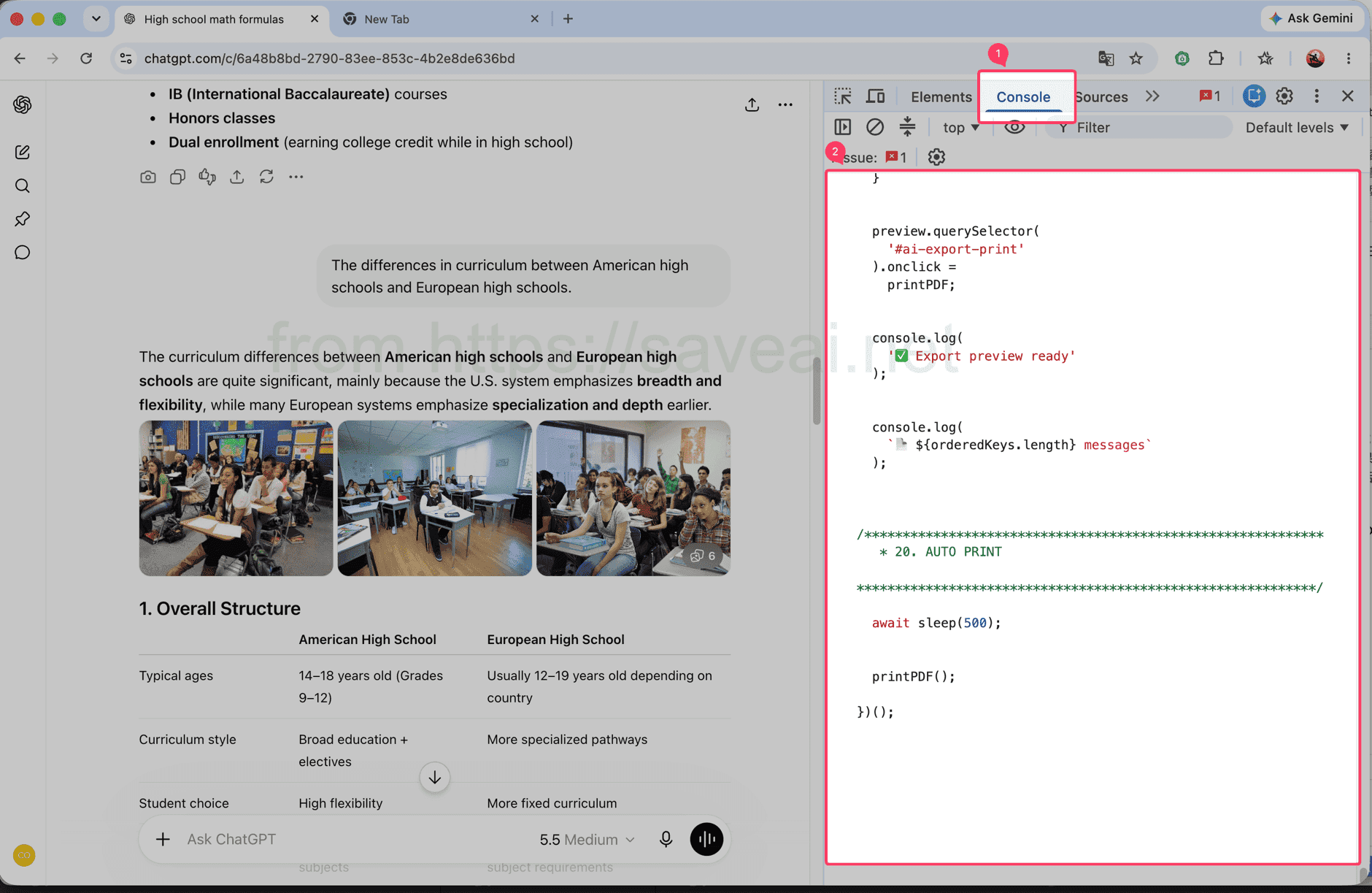
Abra a guia Console e cole o script na área indicada.
Etapa 2: copie e execute o script
Clique em Copiar no canto superior direito do bloco de código. Volte ao Console do Chrome, cole o script e pressione Enter.
// Load and print a complete ChatGPT conversation.
(async () => {
/************************************************************
* CONFIG
************************************************************/
const MESSAGE_SELECTOR = 'section .text-base';
// 每次向上滚动多少个 viewport
const STEP_RATIO = 1.2;
// 每次滚动后的等待时间
const SCROLL_WAIT = 180;
// 到顶部以后等待历史消息加载
const TOP_WAIT = 500;
// 连续几次顶部无变化后结束
const TOP_STABLE_LIMIT = 3;
const sleep = ms =>
new Promise(resolve => setTimeout(resolve, ms));
console.log('🚀 AI Chat Print started');
/************************************************************
* 1. FIND SCROLL CONTAINER
************************************************************/
function findScrollContainer() {
const firstMessage =
document.querySelector(MESSAGE_SELECTOR);
if (firstMessage) {
let el =
firstMessage.parentElement;
while (
el &&
el !== document.body
) {
const style =
getComputedStyle(el);
const scrollable =
el.scrollHeight >
el.clientHeight + 10 &&
(
style.overflowY === 'auto' ||
style.overflowY === 'scroll'
);
if (scrollable) {
return el;
}
el =
el.parentElement;
}
}
const candidates =
[...document.querySelectorAll('*')]
.filter(el => {
const style =
getComputedStyle(el);
return (
el.scrollHeight >
el.clientHeight + 10 &&
(
style.overflowY === 'auto' ||
style.overflowY === 'scroll'
)
);
})
.sort(
(a, b) =>
b.scrollHeight -
a.scrollHeight
);
return (
candidates[0] ||
document.scrollingElement ||
document.documentElement
);
}
const scrollContainer =
findScrollContainer();
console.log(
'📜 Scroll container:',
scrollContainer
);
/************************************************************
* 2. DATA
************************************************************/
const messageMap =
new Map();
const edges =
new Map();
const firstSeenStep =
new Map();
let scanStep = 0;
/************************************************************
* 3. HASH
************************************************************/
function hashString(str) {
let hash =
2166136261;
for (
let i = 0;
i < str.length;
i++
) {
hash ^=
str.charCodeAt(i);
hash =
Math.imul(
hash,
16777619
);
}
return (
hash >>> 0
).toString(36);
}
/************************************************************
* 4. MESSAGE KEY
************************************************************/
function getMessageKey(node) {
const section =
node.closest('section');
const candidates =
[
node,
section
].filter(Boolean);
const attrs = [
'data-message-id',
'data-turn-id',
'data-id',
'id'
];
for (
const el of candidates
) {
for (
const attr of attrs
) {
const value =
el.getAttribute?.(attr);
if (value) {
return (
`${attr}:${value}`
);
}
}
}
const text =
node.innerText || '';
const html =
node.innerHTML || '';
return (
'hash:' +
hashString(
text +
'\n---HTML---\n' +
html
)
);
}
/************************************************************
* 5. COLLECT CURRENT DOM
************************************************************/
function collect() {
const nodes =
[
...document.querySelectorAll(
MESSAGE_SELECTOR
)
];
const keys = [];
for (
const node of nodes
) {
const key =
getMessageKey(node);
keys.push(key);
if (
!messageMap.has(key)
) {
messageMap.set(
key,
node.cloneNode(true)
);
firstSeenStep.set(
key,
scanStep
);
}
}
/**
* 保存当前 DOM 中观察到的顺序:
*
* A -> B
* B -> C
*/
for (
let i = 0;
i < keys.length - 1;
i++
) {
const a =
keys[i];
const b =
keys[i + 1];
if (
a === b
) {
continue;
}
if (
!edges.has(a)
) {
edges.set(
a,
new Set()
);
}
edges
.get(a)
.add(b);
}
console.log(
`📦 step=${scanStep}`,
`DOM=${nodes.length}`,
`total=${messageMap.size}`
);
return {
nodes,
keys
};
}
/************************************************************
* 6. SCROLL TO BOTTOM FIRST
************************************************************/
async function scrollToBottomFully() {
console.log(
'⬇️ Scrolling to bottom...'
);
let stable = 0;
let lastTop = -1;
let rounds = 0;
while (
stable < 3 &&
rounds < 30
) {
rounds++;
scrollContainer.scrollTop =
scrollContainer.scrollHeight;
await sleep(250);
const now =
scrollContainer.scrollTop;
const max =
Math.max(
0,
scrollContainer.scrollHeight -
scrollContainer.clientHeight
);
if (
Math.abs(
now - lastTop
) < 2 &&
Math.abs(
max - now
) < 3
) {
stable++;
} else {
stable = 0;
}
lastTop =
now;
}
console.log(
'✅ Bottom reached'
);
}
/************************************************************
* 7. SCAN FROM BOTTOM TO TOP
************************************************************/
async function scanFromBottomToTop() {
console.log(
'⬆️ Scanning upward...'
);
let topStable = 0;
let safety = 0;
while (
topStable <
TOP_STABLE_LIMIT &&
safety < 10000
) {
safety++;
scanStep++;
collect();
const before =
scrollContainer.scrollTop;
/**
* 还没到顶部
*/
if (
before > 1
) {
const distance =
Math.max(
300,
scrollContainer.clientHeight *
STEP_RATIO
);
scrollContainer.scrollTop =
Math.max(
0,
before - distance
);
await sleep(
SCROLL_WAIT
);
collect();
topStable = 0;
continue;
}
/**
* 已经到顶部
*
* 等待网站继续加载更早消息
*/
const oldHeight =
scrollContainer.scrollHeight;
const oldTotal =
messageMap.size;
await sleep(
TOP_WAIT
);
scanStep++;
collect();
const newHeight =
scrollContainer.scrollHeight;
const newTotal =
messageMap.size;
if (
newTotal > oldTotal ||
newHeight >
oldHeight + 5 ||
scrollContainer.scrollTop > 1
) {
topStable = 0;
console.log(
'➕ Older messages loaded:',
newTotal
);
} else {
topStable++;
console.log(
`⏳ Top stable ${topStable}/${TOP_STABLE_LIMIT}`
);
}
}
collect();
console.log(
'✅ Scan complete:',
messageMap.size
);
}
/************************************************************
* 8. FINAL ORDER
************************************************************/
function getFinalOrder() {
/**
* 最优情况:
*
* 扫描结束后页面已经把全部消息留在 DOM 中。
*
* 这种情况下直接相信当前 DOM 顺序,
* 不再自己排序。
*/
const finalNodes =
[
...document.querySelectorAll(
MESSAGE_SELECTOR
)
];
const finalKeys =
finalNodes.map(
getMessageKey
);
const finalKeySet =
new Set(finalKeys);
const allCollectedPresent =
[...messageMap.keys()]
.every(
key =>
finalKeySet.has(key)
);
if (
allCollectedPresent &&
finalKeys.length
) {
console.log(
'🎯 Using final DOM order'
);
const seen =
new Set();
return finalKeys.filter(
key => {
if (
seen.has(key)
) {
return false;
}
seen.add(key);
return true;
}
);
}
/**
* fallback:
*
* 如果还是严格虚拟滚动,
* 根据之前记录的局部 DOM 顺序重建。
*/
console.log(
'🧩 Rebuilding virtual list order'
);
const allKeys =
[...messageMap.keys()];
const indegree =
new Map();
allKeys.forEach(
key =>
indegree.set(
key,
0
)
);
edges.forEach(
(targets, from) => {
targets.forEach(
to => {
if (
indegree.has(to) &&
from !== to
) {
indegree.set(
to,
indegree.get(to) + 1
);
}
}
);
}
);
let queue =
allKeys.filter(
key =>
indegree.get(key) === 0
);
/**
* 因为是从底部往顶部扫描,
* 越晚第一次看到的消息通常越靠前。
*/
queue.sort(
(a, b) =>
(
firstSeenStep.get(b) || 0
) -
(
firstSeenStep.get(a) || 0
)
);
const result = [];
while (
queue.length
) {
const key =
queue.shift();
result.push(key);
const targets =
edges.get(key);
if (
!targets
) {
continue;
}
for (
const to of targets
) {
if (
!indegree.has(to)
) {
continue;
}
indegree.set(
to,
indegree.get(to) - 1
);
if (
indegree.get(to) === 0
) {
queue.push(to);
queue.sort(
(a, b) =>
(
firstSeenStep.get(b) || 0
) -
(
firstSeenStep.get(a) || 0
)
);
}
}
}
/**
* 防止异常关系导致遗漏
*/
const used =
new Set(result);
for (
const key of allKeys
) {
if (
!used.has(key)
) {
result.push(key);
}
}
return result;
}
/************************************************************
* 9. START
************************************************************/
await scrollToBottomFully();
scanStep++;
collect();
await scanFromBottomToTop();
const orderedKeys =
getFinalOrder();
console.log(
'📚 Final messages:',
orderedKeys.length
);
/************************************************************
* 10. CLEAN OLD PREVIEW
************************************************************/
document
.querySelector(
'#ai-export-preview'
)
?.remove();
document
.querySelector(
'#ai-export-print-style'
)
?.remove();
/************************************************************
* 11. CREATE PREVIEW
************************************************************/
const preview =
document.createElement(
'div'
);
preview.id =
'ai-export-preview';
preview.innerHTML = `
<div id="ai-export-toolbar">
<button id="ai-export-close">
Close
</button>
<button id="ai-export-print">
Print PDF
</button>
<span id="ai-export-count">
</span>
</div>
<div id="ai-export-content">
</div>
`;
preview.style.cssText = `
position: fixed;
inset: 0;
z-index: 2147483647;
overflow-y: auto;
overflow-x: hidden;
background: white;
padding: 0;
`;
/************************************************************
* 12. TOOLBAR
************************************************************/
const toolbar =
preview.querySelector(
'#ai-export-toolbar'
);
toolbar.style.cssText = `
position: sticky;
top: 0;
z-index: 9999;
display: flex;
align-items: center;
gap: 10px;
padding: 12px 20px;
background: white;
border-bottom:
1px solid rgba(0,0,0,.15);
`;
toolbar
.querySelectorAll(
'button'
)
.forEach(
button => {
button.style.cssText = `
padding: 7px 14px;
cursor: pointer;
border:
1px solid #aaa;
border-radius: 6px;
background: white;
color: black;
`;
}
);
/************************************************************
* 13. CONTENT
************************************************************/
const content =
preview.querySelector(
'#ai-export-content'
);
content.style.cssText = `
width: 100%;
max-width: 1000px;
margin: 0 auto;
padding:
30px 40px 80px;
box-sizing:
border-box;
`;
/************************************************************
* 14. AI EXPORTER BANNER
*
* 只在当前页面显示。
* 打印 PDF 时隐藏。
************************************************************/
const lang =
(
navigator.language ||
'en'
)
.replace(
'_',
'-'
);
const aiExporterUrl =
'https://chromewebstore.google.com/detail/' +
'ai-exporter-save-chatgpt/' +
'kagjkiiecagemklhmhkabbalfpbianbe' +
`?hl=${encodeURIComponent(lang)}` +
'&utm_source=chatgptprint';
const promotion =
document.createElement(
'div'
);
promotion.id =
'ai-export-promotion';
promotion.innerHTML = `
<div class="ai-export-promo-main">
<div class="ai-export-promo-badge">
AI Exporter
</div>
<div class="ai-export-promo-text">
<div class="ai-export-promo-title">
Export ChatGPT to PDF with AI Exporter
</div>
<div class="ai-export-promo-description">
PDF, Word, Markdown and more.
</div>
</div>
<a
class="ai-export-promo-button"
href="${aiExporterUrl}"
target="_blank"
rel="noopener noreferrer"
>
Get AI Exporter →
</a>
</div>
`;
promotion.style.cssText = `
margin:
0 auto 34px;
padding:
18px 20px;
max-width:
920px;
box-sizing:
border-box;
border:
1px solid rgba(59,130,246,.25);
border-radius:
14px;
background:
linear-gradient(
135deg,
#eff6ff 0%,
#eef2ff 52%,
#f5f3ff 100%
);
color:
#172554;
box-shadow:
0 6px 22px
rgba(59,130,246,.10);
font-family:
-apple-system,
BlinkMacSystemFont,
"Segoe UI",
sans-serif;
`;
const promoMain =
promotion.querySelector(
'.ai-export-promo-main'
);
promoMain.style.cssText = `
display: flex;
align-items: center;
gap: 16px;
`;
const badge =
promotion.querySelector(
'.ai-export-promo-badge'
);
badge.style.cssText = `
flex:
0 0 auto;
padding:
7px 10px;
border-radius:
8px;
background:
#2563eb;
color:
white;
font-size:
13px;
line-height:
1;
font-weight:
700;
letter-spacing:
.2px;
`;
const promoText =
promotion.querySelector(
'.ai-export-promo-text'
);
promoText.style.cssText = `
flex:
1 1 auto;
min-width:
0;
`;
const promoTitle =
promotion.querySelector(
'.ai-export-promo-title'
);
promoTitle.style.cssText = `
margin-bottom:
4px;
font-size:
16px;
line-height:
1.45;
font-weight:
700;
color:
#172554;
`;
const promoDescription =
promotion.querySelector(
'.ai-export-promo-description'
);
promoDescription.style.cssText = `
font-size:
13px;
line-height:
1.5;
color:
#475569;
`;
const promoButton =
promotion.querySelector(
'.ai-export-promo-button'
);
promoButton.style.cssText = `
flex:
0 0 auto;
padding:
9px 13px;
border-radius:
8px;
background:
#2563eb;
color:
white;
font-size:
13px;
line-height:
1.2;
font-weight:
600;
text-decoration:
none;
white-space:
nowrap;
`;
/**
* 广告放在所有对话最上方
*/
content.appendChild(
promotion
);
/************************************************************
* 15. APPEND MESSAGES
************************************************************/
for (
const key of orderedKeys
) {
const node =
messageMap.get(key);
if (
!node
) {
continue;
}
content.appendChild(
node.cloneNode(true)
);
}
/************************************************************
* 16. MESSAGE COUNT
************************************************************/
preview.querySelector(
'#ai-export-count'
).textContent =
`${orderedKeys.length} messages`;
document.body.appendChild(
preview
);
/************************************************************
* 17. PRINT CSS
************************************************************/
const printStyle =
document.createElement(
'style'
);
printStyle.id =
'ai-export-print-style';
printStyle.textContent = `
@media print {
html,
body {
width:
auto !important;
height:
auto !important;
min-height:
0 !important;
max-height:
none !important;
overflow:
visible !important;
}
body > *:not(#ai-export-preview) {
display:
none !important;
}
#ai-export-preview {
display:
block !important;
position:
static !important;
inset:
auto !important;
width:
100% !important;
height:
auto !important;
min-height:
0 !important;
max-height:
none !important;
overflow:
visible !important;
padding:
0 !important;
margin:
0 !important;
background:
white !important;
}
#ai-export-toolbar {
display:
none !important;
}
/******************************************************
* PDF 中隐藏 AI Exporter 推荐
******************************************************/
#ai-export-promotion {
display:
none !important;
}
#ai-export-content {
display:
block !important;
position:
static !important;
width:
100% !important;
max-width:
none !important;
height:
auto !important;
min-height:
0 !important;
max-height:
none !important;
overflow:
visible !important;
margin:
0 !important;
padding:
0 !important;
}
#ai-export-content > * {
overflow:
visible !important;
max-height:
none !important;
}
}
`;
document.head.appendChild(
printStyle
);
/************************************************************
* 18. CLOSE
************************************************************/
preview.querySelector(
'#ai-export-close'
).onclick = () => {
preview.remove();
printStyle.remove();
console.log(
'✅ Preview closed'
);
};
/************************************************************
* 19. PRINT
************************************************************/
function printPDF() {
console.log(
'🖨️ Opening print dialog...'
);
/**
* 强制完成 layout
*/
preview.offsetHeight;
requestAnimationFrame(
() => {
requestAnimationFrame(
() => {
window.print();
}
);
}
);
}
preview.querySelector(
'#ai-export-print'
).onclick =
printPDF;
console.log(
'✅ Export preview ready'
);
console.log(
`📄 ${orderedKeys.length} messages`
);
/************************************************************
* 20. AUTO PRINT
************************************************************/
await sleep(500);
printPDF();
})();O script é longo; use o botão em vez de selecionar o código manualmente.
Cole no Console apenas códigos de uma fonte confiável. Execute o script somente em conversas que você tem autorização para acessar.
Etapa 3: aguarde a janela de impressão
Mantenha a guia do ChatGPT aberta enquanto o script é executado. A conversa rola automaticamente e o Console mostra quantas mensagens já foram coletadas. Quanto mais longa a conversa, maior o tempo de espera. Ao concluir, o Chrome abre a janela de impressão automaticamente.
Selecione sua impressora para imprimir em papel. Para criar um arquivo, escolha Salvar como PDF em “Destino” e clique em Salvar.
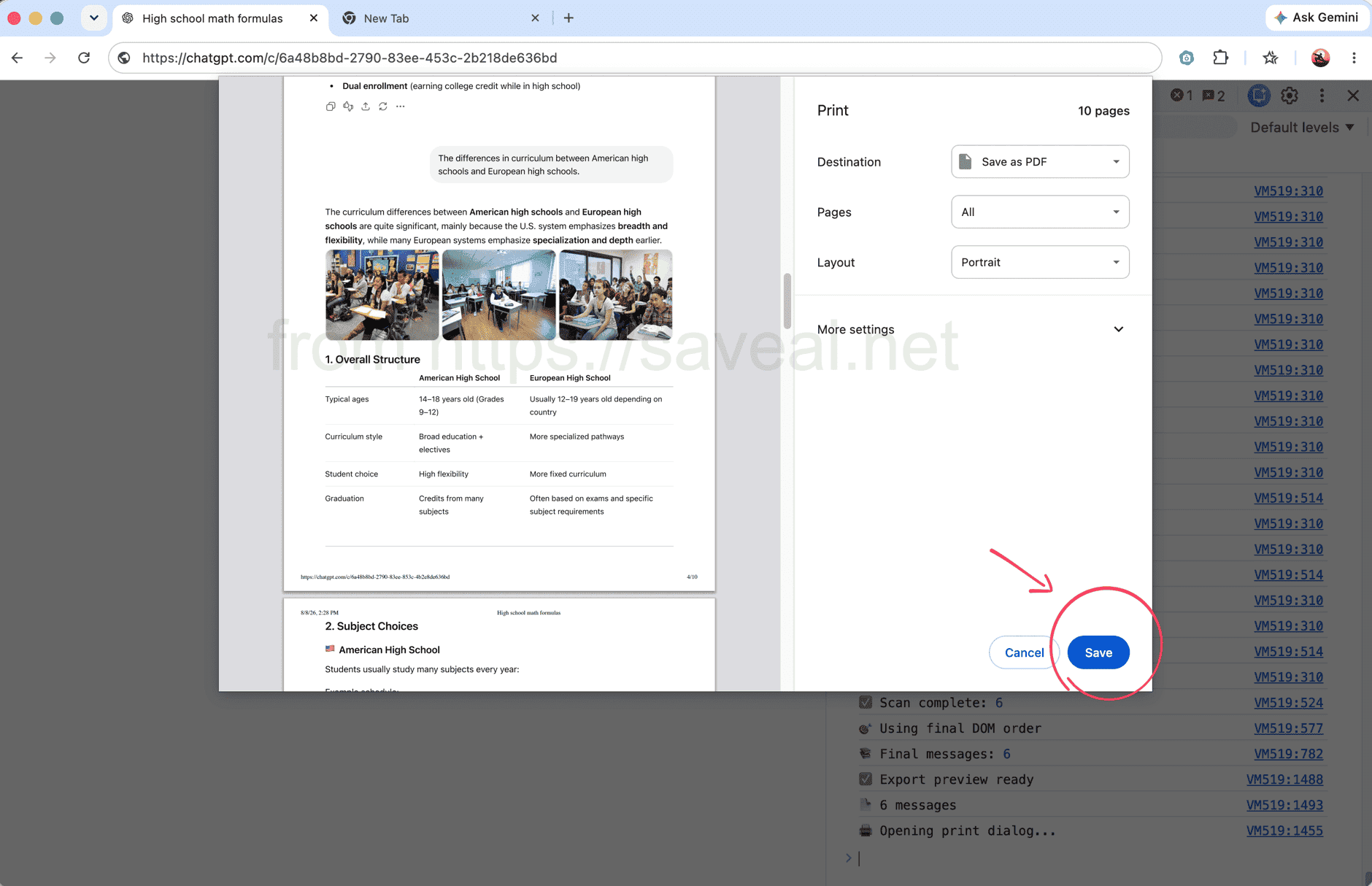
O Console exibe a quantidade de mensagens durante o processo e abre a janela de impressão ao terminar.
Método 2: exportar a conversa inteira com uma extensão
Se preferir não usar as ferramentas do desenvolvedor, o AI Exporter oferece um caminho mais simples. Abra a conversa, clique no ícone do AI Exporter na barra do Chrome e selecione PDF no popup. A extensão carrega a conversa inteira e salva o arquivo em PDF.
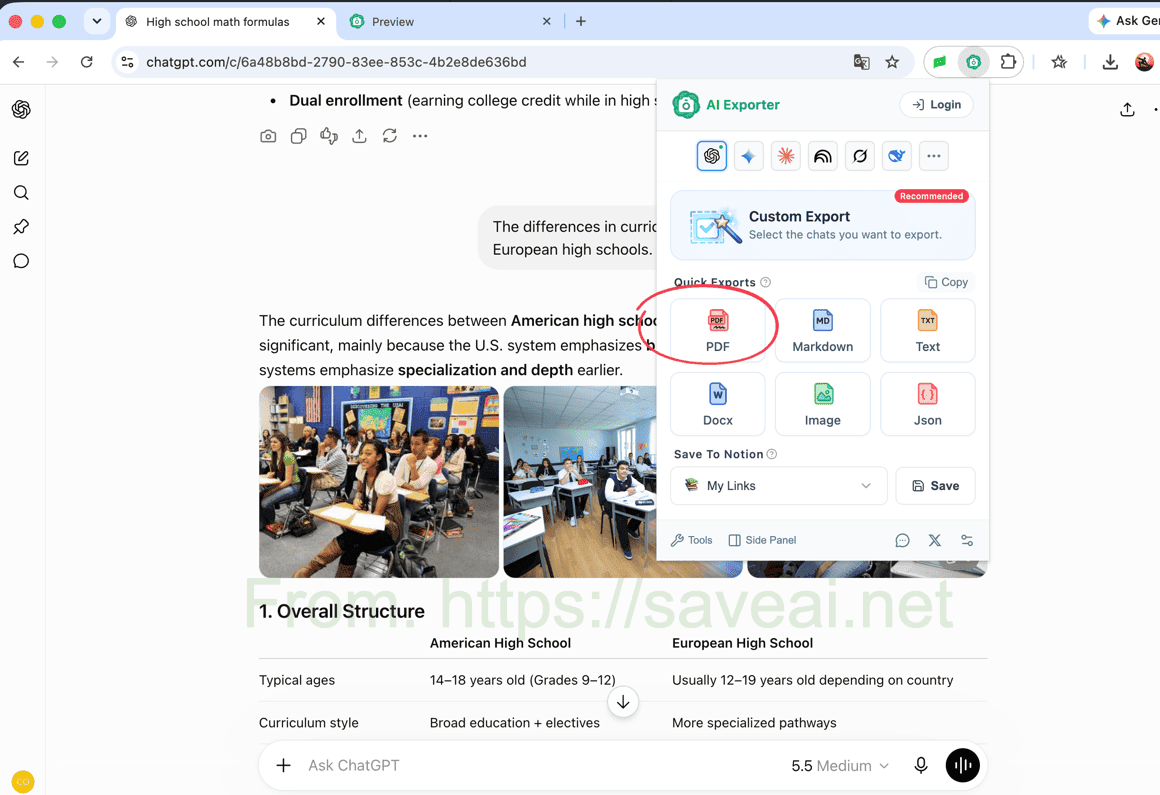
Abra a extensão e selecione PDF para salvar a conversa inteira.
Este método exige a instalação de uma extensão, mas é mais rápido para exportações frequentes e preserva blocos de código, tabelas, imagens e fórmulas sem configuração adicional. Você também pode selecionar mensagens específicas quando não precisar da conversa completa.
Qual método escolher?
| Sua situação | Melhor opção |
|---|---|
| Você precisa imprimir uma conversa sem instalar nada | Script no Console |
| Você sabe usar as ferramentas do desenvolvedor do Chrome | Script no Console |
| Você salva conversas do ChatGPT com frequência | Extensão de navegador |
| Você precisa preservar código, tabelas, fórmulas, imagens ou configurações de PDF | Extensão de navegador |
Para uma impressão pontual, comece pelo script. Para exportações frequentes ou um PDF mais bem formatado, a extensão é mais prática.
Este artigo original foi escrito por Colin. Se você o republicar, inclua um link para esta página como fonte original.