
How Do I Print an Entire Chat in ChatGPT?
ChatGPT may leave messages out when you print a long chat. Use this browser-console script to print the entire conversation or save it as a PDF.
If Ctrl + P prints only part of your ChatGPT conversation, the problem is not your printer. ChatGPT may not have every message loaded in the page at the same time.
You have two practical options:
- No installation: run the script below once, then print the fully loaded conversation or save it as a PDF.
- Fastest for regular use: use a ChatGPT export extension to load the full chat and create a formatted PDF in one click.
Why Does ChatGPT Print Only Part of a Conversation?
I inspected ChatGPT’s DOM and found that long conversations use virtual rendering. As you scroll, ChatGPT renders the messages you need and may remove off-screen messages from the page. This keeps a large conversation responsive, but the browser can print only the content currently present in the DOM.
The script below solves that problem by scrolling through the chat and collecting the conversation before opening the print view.
Method 1: Run the Script and Print the Full Chat
This method is useful when you need to print one conversation and do not want to install an extension.
Step 1: Open Chrome’s Console
Open the ChatGPT conversation you want to print, then open Chrome DevTools:
- On Mac, press
Command + Option + J. - On Windows or Linux, press
Ctrl + Shift + J.
Select the Console tab. You will paste the script into the empty input area shown below.
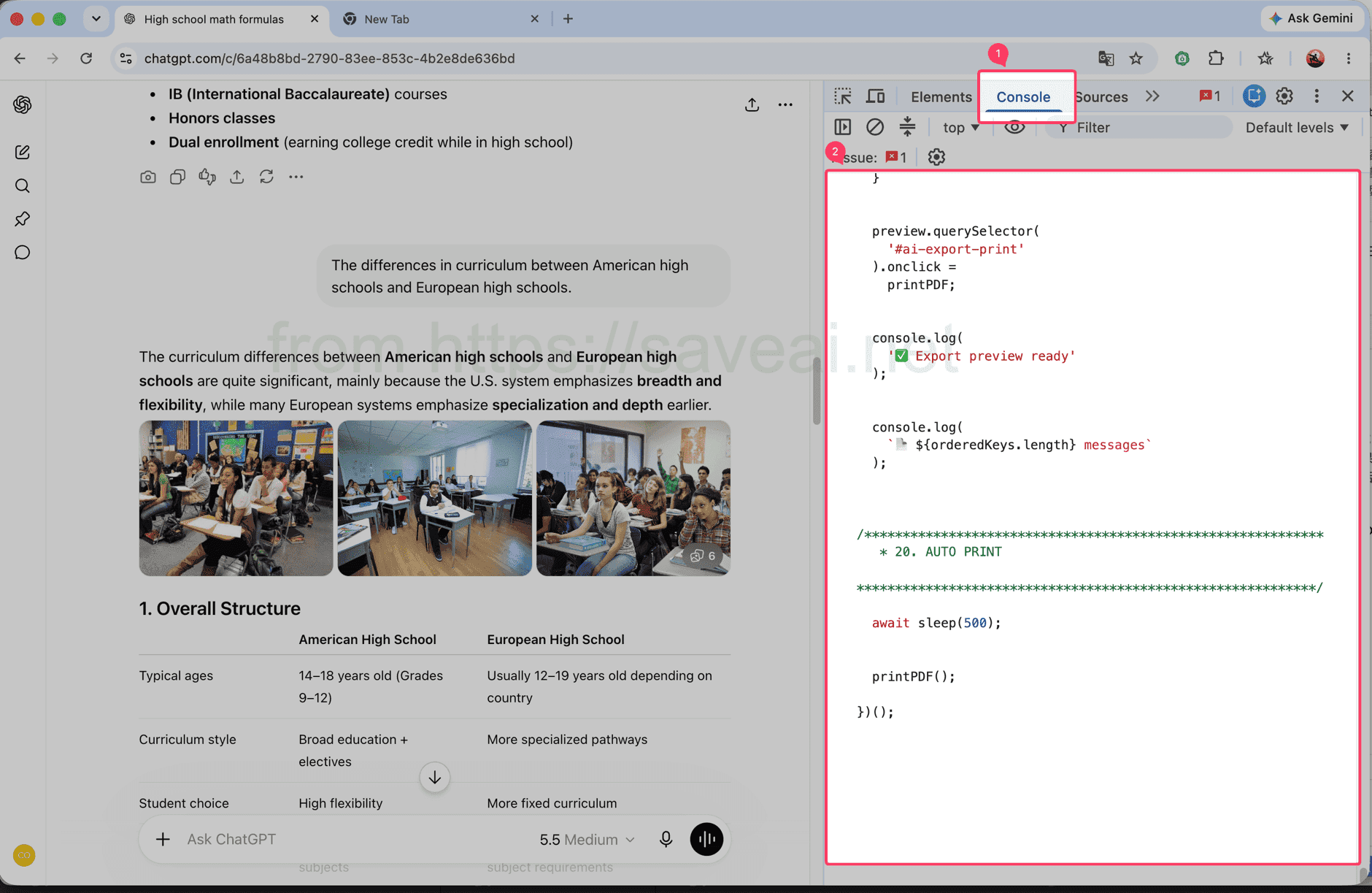
Open the Console tab, then paste the script into the highlighted area.
Step 2: Copy and Run the Script
Click Copy in the top-right corner of the code box. Return to Chrome’s Console, paste the script, and press Enter.
// Load and print a complete ChatGPT conversation.
(async () => {
/************************************************************
* CONFIG
************************************************************/
const MESSAGE_SELECTOR = 'section .text-base';
// 每次向上滚动多少个 viewport
const STEP_RATIO = 1.2;
// 每次滚动后的等待时间
const SCROLL_WAIT = 180;
// 到顶部以后等待历史消息加载
const TOP_WAIT = 500;
// 连续几次顶部无变化后结束
const TOP_STABLE_LIMIT = 3;
const sleep = ms =>
new Promise(resolve => setTimeout(resolve, ms));
console.log('🚀 AI Chat Print started');
/************************************************************
* 1. FIND SCROLL CONTAINER
************************************************************/
function findScrollContainer() {
const firstMessage =
document.querySelector(MESSAGE_SELECTOR);
if (firstMessage) {
let el =
firstMessage.parentElement;
while (
el &&
el !== document.body
) {
const style =
getComputedStyle(el);
const scrollable =
el.scrollHeight >
el.clientHeight + 10 &&
(
style.overflowY === 'auto' ||
style.overflowY === 'scroll'
);
if (scrollable) {
return el;
}
el =
el.parentElement;
}
}
const candidates =
[...document.querySelectorAll('*')]
.filter(el => {
const style =
getComputedStyle(el);
return (
el.scrollHeight >
el.clientHeight + 10 &&
(
style.overflowY === 'auto' ||
style.overflowY === 'scroll'
)
);
})
.sort(
(a, b) =>
b.scrollHeight -
a.scrollHeight
);
return (
candidates[0] ||
document.scrollingElement ||
document.documentElement
);
}
const scrollContainer =
findScrollContainer();
console.log(
'📜 Scroll container:',
scrollContainer
);
/************************************************************
* 2. DATA
************************************************************/
const messageMap =
new Map();
const edges =
new Map();
const firstSeenStep =
new Map();
let scanStep = 0;
/************************************************************
* 3. HASH
************************************************************/
function hashString(str) {
let hash =
2166136261;
for (
let i = 0;
i < str.length;
i++
) {
hash ^=
str.charCodeAt(i);
hash =
Math.imul(
hash,
16777619
);
}
return (
hash >>> 0
).toString(36);
}
/************************************************************
* 4. MESSAGE KEY
************************************************************/
function getMessageKey(node) {
const section =
node.closest('section');
const candidates =
[
node,
section
].filter(Boolean);
const attrs = [
'data-message-id',
'data-turn-id',
'data-id',
'id'
];
for (
const el of candidates
) {
for (
const attr of attrs
) {
const value =
el.getAttribute?.(attr);
if (value) {
return (
`${attr}:${value}`
);
}
}
}
const text =
node.innerText || '';
const html =
node.innerHTML || '';
return (
'hash:' +
hashString(
text +
'\n---HTML---\n' +
html
)
);
}
/************************************************************
* 5. COLLECT CURRENT DOM
************************************************************/
function collect() {
const nodes =
[
...document.querySelectorAll(
MESSAGE_SELECTOR
)
];
const keys = [];
for (
const node of nodes
) {
const key =
getMessageKey(node);
keys.push(key);
if (
!messageMap.has(key)
) {
messageMap.set(
key,
node.cloneNode(true)
);
firstSeenStep.set(
key,
scanStep
);
}
}
/**
* 保存当前 DOM 中观察到的顺序:
*
* A -> B
* B -> C
*/
for (
let i = 0;
i < keys.length - 1;
i++
) {
const a =
keys[i];
const b =
keys[i + 1];
if (
a === b
) {
continue;
}
if (
!edges.has(a)
) {
edges.set(
a,
new Set()
);
}
edges
.get(a)
.add(b);
}
console.log(
`📦 step=${scanStep}`,
`DOM=${nodes.length}`,
`total=${messageMap.size}`
);
return {
nodes,
keys
};
}
/************************************************************
* 6. SCROLL TO BOTTOM FIRST
************************************************************/
async function scrollToBottomFully() {
console.log(
'⬇️ Scrolling to bottom...'
);
let stable = 0;
let lastTop = -1;
let rounds = 0;
while (
stable < 3 &&
rounds < 30
) {
rounds++;
scrollContainer.scrollTop =
scrollContainer.scrollHeight;
await sleep(250);
const now =
scrollContainer.scrollTop;
const max =
Math.max(
0,
scrollContainer.scrollHeight -
scrollContainer.clientHeight
);
if (
Math.abs(
now - lastTop
) < 2 &&
Math.abs(
max - now
) < 3
) {
stable++;
} else {
stable = 0;
}
lastTop =
now;
}
console.log(
'✅ Bottom reached'
);
}
/************************************************************
* 7. SCAN FROM BOTTOM TO TOP
************************************************************/
async function scanFromBottomToTop() {
console.log(
'⬆️ Scanning upward...'
);
let topStable = 0;
let safety = 0;
while (
topStable <
TOP_STABLE_LIMIT &&
safety < 10000
) {
safety++;
scanStep++;
collect();
const before =
scrollContainer.scrollTop;
/**
* 还没到顶部
*/
if (
before > 1
) {
const distance =
Math.max(
300,
scrollContainer.clientHeight *
STEP_RATIO
);
scrollContainer.scrollTop =
Math.max(
0,
before - distance
);
await sleep(
SCROLL_WAIT
);
collect();
topStable = 0;
continue;
}
/**
* 已经到顶部
*
* 等待网站继续加载更早消息
*/
const oldHeight =
scrollContainer.scrollHeight;
const oldTotal =
messageMap.size;
await sleep(
TOP_WAIT
);
scanStep++;
collect();
const newHeight =
scrollContainer.scrollHeight;
const newTotal =
messageMap.size;
if (
newTotal > oldTotal ||
newHeight >
oldHeight + 5 ||
scrollContainer.scrollTop > 1
) {
topStable = 0;
console.log(
'➕ Older messages loaded:',
newTotal
);
} else {
topStable++;
console.log(
`⏳ Top stable ${topStable}/${TOP_STABLE_LIMIT}`
);
}
}
collect();
console.log(
'✅ Scan complete:',
messageMap.size
);
}
/************************************************************
* 8. FINAL ORDER
************************************************************/
function getFinalOrder() {
/**
* 最优情况:
*
* 扫描结束后页面已经把全部消息留在 DOM 中。
*
* 这种情况下直接相信当前 DOM 顺序,
* 不再自己排序。
*/
const finalNodes =
[
...document.querySelectorAll(
MESSAGE_SELECTOR
)
];
const finalKeys =
finalNodes.map(
getMessageKey
);
const finalKeySet =
new Set(finalKeys);
const allCollectedPresent =
[...messageMap.keys()]
.every(
key =>
finalKeySet.has(key)
);
if (
allCollectedPresent &&
finalKeys.length
) {
console.log(
'🎯 Using final DOM order'
);
const seen =
new Set();
return finalKeys.filter(
key => {
if (
seen.has(key)
) {
return false;
}
seen.add(key);
return true;
}
);
}
/**
* fallback:
*
* 如果还是严格虚拟滚动,
* 根据之前记录的局部 DOM 顺序重建。
*/
console.log(
'🧩 Rebuilding virtual list order'
);
const allKeys =
[...messageMap.keys()];
const indegree =
new Map();
allKeys.forEach(
key =>
indegree.set(
key,
0
)
);
edges.forEach(
(targets, from) => {
targets.forEach(
to => {
if (
indegree.has(to) &&
from !== to
) {
indegree.set(
to,
indegree.get(to) + 1
);
}
}
);
}
);
let queue =
allKeys.filter(
key =>
indegree.get(key) === 0
);
/**
* 因为是从底部往顶部扫描,
* 越晚第一次看到的消息通常越靠前。
*/
queue.sort(
(a, b) =>
(
firstSeenStep.get(b) || 0
) -
(
firstSeenStep.get(a) || 0
)
);
const result = [];
while (
queue.length
) {
const key =
queue.shift();
result.push(key);
const targets =
edges.get(key);
if (
!targets
) {
continue;
}
for (
const to of targets
) {
if (
!indegree.has(to)
) {
continue;
}
indegree.set(
to,
indegree.get(to) - 1
);
if (
indegree.get(to) === 0
) {
queue.push(to);
queue.sort(
(a, b) =>
(
firstSeenStep.get(b) || 0
) -
(
firstSeenStep.get(a) || 0
)
);
}
}
}
/**
* 防止异常关系导致遗漏
*/
const used =
new Set(result);
for (
const key of allKeys
) {
if (
!used.has(key)
) {
result.push(key);
}
}
return result;
}
/************************************************************
* 9. START
************************************************************/
await scrollToBottomFully();
scanStep++;
collect();
await scanFromBottomToTop();
const orderedKeys =
getFinalOrder();
console.log(
'📚 Final messages:',
orderedKeys.length
);
/************************************************************
* 10. CLEAN OLD PREVIEW
************************************************************/
document
.querySelector(
'#ai-export-preview'
)
?.remove();
document
.querySelector(
'#ai-export-print-style'
)
?.remove();
/************************************************************
* 11. CREATE PREVIEW
************************************************************/
const preview =
document.createElement(
'div'
);
preview.id =
'ai-export-preview';
preview.innerHTML = `
<div id="ai-export-toolbar">
<button id="ai-export-close">
Close
</button>
<button id="ai-export-print">
Print PDF
</button>
<span id="ai-export-count">
</span>
</div>
<div id="ai-export-content">
</div>
`;
preview.style.cssText = `
position: fixed;
inset: 0;
z-index: 2147483647;
overflow-y: auto;
overflow-x: hidden;
background: white;
padding: 0;
`;
/************************************************************
* 12. TOOLBAR
************************************************************/
const toolbar =
preview.querySelector(
'#ai-export-toolbar'
);
toolbar.style.cssText = `
position: sticky;
top: 0;
z-index: 9999;
display: flex;
align-items: center;
gap: 10px;
padding: 12px 20px;
background: white;
border-bottom:
1px solid rgba(0,0,0,.15);
`;
toolbar
.querySelectorAll(
'button'
)
.forEach(
button => {
button.style.cssText = `
padding: 7px 14px;
cursor: pointer;
border:
1px solid #aaa;
border-radius: 6px;
background: white;
color: black;
`;
}
);
/************************************************************
* 13. CONTENT
************************************************************/
const content =
preview.querySelector(
'#ai-export-content'
);
content.style.cssText = `
width: 100%;
max-width: 1000px;
margin: 0 auto;
padding:
30px 40px 80px;
box-sizing:
border-box;
`;
/************************************************************
* 14. AI EXPORTER BANNER
*
* 只在当前页面显示。
* 打印 PDF 时隐藏。
************************************************************/
const lang =
(
navigator.language ||
'en'
)
.replace(
'_',
'-'
);
const aiExporterUrl =
'https://chromewebstore.google.com/detail/' +
'ai-exporter-save-chatgpt/' +
'kagjkiiecagemklhmhkabbalfpbianbe' +
`?hl=${encodeURIComponent(lang)}` +
'&utm_source=chatgptprint';
const promotion =
document.createElement(
'div'
);
promotion.id =
'ai-export-promotion';
promotion.innerHTML = `
<div class="ai-export-promo-main">
<div class="ai-export-promo-badge">
AI Exporter
</div>
<div class="ai-export-promo-text">
<div class="ai-export-promo-title">
Export ChatGPT to PDF with AI Exporter
</div>
<div class="ai-export-promo-description">
PDF, Word, Markdown and more.
</div>
</div>
<a
class="ai-export-promo-button"
href="${aiExporterUrl}"
target="_blank"
rel="noopener noreferrer"
>
Get AI Exporter →
</a>
</div>
`;
promotion.style.cssText = `
margin:
0 auto 34px;
padding:
18px 20px;
max-width:
920px;
box-sizing:
border-box;
border:
1px solid rgba(59,130,246,.25);
border-radius:
14px;
background:
linear-gradient(
135deg,
#eff6ff 0%,
#eef2ff 52%,
#f5f3ff 100%
);
color:
#172554;
box-shadow:
0 6px 22px
rgba(59,130,246,.10);
font-family:
-apple-system,
BlinkMacSystemFont,
"Segoe UI",
sans-serif;
`;
const promoMain =
promotion.querySelector(
'.ai-export-promo-main'
);
promoMain.style.cssText = `
display: flex;
align-items: center;
gap: 16px;
`;
const badge =
promotion.querySelector(
'.ai-export-promo-badge'
);
badge.style.cssText = `
flex:
0 0 auto;
padding:
7px 10px;
border-radius:
8px;
background:
#2563eb;
color:
white;
font-size:
13px;
line-height:
1;
font-weight:
700;
letter-spacing:
.2px;
`;
const promoText =
promotion.querySelector(
'.ai-export-promo-text'
);
promoText.style.cssText = `
flex:
1 1 auto;
min-width:
0;
`;
const promoTitle =
promotion.querySelector(
'.ai-export-promo-title'
);
promoTitle.style.cssText = `
margin-bottom:
4px;
font-size:
16px;
line-height:
1.45;
font-weight:
700;
color:
#172554;
`;
const promoDescription =
promotion.querySelector(
'.ai-export-promo-description'
);
promoDescription.style.cssText = `
font-size:
13px;
line-height:
1.5;
color:
#475569;
`;
const promoButton =
promotion.querySelector(
'.ai-export-promo-button'
);
promoButton.style.cssText = `
flex:
0 0 auto;
padding:
9px 13px;
border-radius:
8px;
background:
#2563eb;
color:
white;
font-size:
13px;
line-height:
1.2;
font-weight:
600;
text-decoration:
none;
white-space:
nowrap;
`;
/**
* 广告放在所有对话最上方
*/
content.appendChild(
promotion
);
/************************************************************
* 15. APPEND MESSAGES
************************************************************/
for (
const key of orderedKeys
) {
const node =
messageMap.get(key);
if (
!node
) {
continue;
}
content.appendChild(
node.cloneNode(true)
);
}
/************************************************************
* 16. MESSAGE COUNT
************************************************************/
preview.querySelector(
'#ai-export-count'
).textContent =
`${orderedKeys.length} messages`;
document.body.appendChild(
preview
);
/************************************************************
* 17. PRINT CSS
************************************************************/
const printStyle =
document.createElement(
'style'
);
printStyle.id =
'ai-export-print-style';
printStyle.textContent = `
@media print {
html,
body {
width:
auto !important;
height:
auto !important;
min-height:
0 !important;
max-height:
none !important;
overflow:
visible !important;
}
body > *:not(#ai-export-preview) {
display:
none !important;
}
#ai-export-preview {
display:
block !important;
position:
static !important;
inset:
auto !important;
width:
100% !important;
height:
auto !important;
min-height:
0 !important;
max-height:
none !important;
overflow:
visible !important;
padding:
0 !important;
margin:
0 !important;
background:
white !important;
}
#ai-export-toolbar {
display:
none !important;
}
/******************************************************
* PDF 中隐藏 AI Exporter 推荐
******************************************************/
#ai-export-promotion {
display:
none !important;
}
#ai-export-content {
display:
block !important;
position:
static !important;
width:
100% !important;
max-width:
none !important;
height:
auto !important;
min-height:
0 !important;
max-height:
none !important;
overflow:
visible !important;
margin:
0 !important;
padding:
0 !important;
}
#ai-export-content > * {
overflow:
visible !important;
max-height:
none !important;
}
}
`;
document.head.appendChild(
printStyle
);
/************************************************************
* 18. CLOSE
************************************************************/
preview.querySelector(
'#ai-export-close'
).onclick = () => {
preview.remove();
printStyle.remove();
console.log(
'✅ Preview closed'
);
};
/************************************************************
* 19. PRINT
************************************************************/
function printPDF() {
console.log(
'🖨️ Opening print dialog...'
);
/**
* 强制完成 layout
*/
preview.offsetHeight;
requestAnimationFrame(
() => {
requestAnimationFrame(
() => {
window.print();
}
);
}
);
}
preview.querySelector(
'#ai-export-print'
).onclick =
printPDF;
console.log(
'✅ Export preview ready'
);
console.log(
`📄 ${orderedKeys.length} messages`
);
/************************************************************
* 20. AUTO PRINT
************************************************************/
await sleep(500);
printPDF();
})();The script is long, so use the button instead of selecting it manually.
Only paste browser-console code from a source you trust. Run this script only on conversations you are authorized to access.
Step 3: Wait for the Print Window
Keep the ChatGPT tab open while the script runs. It automatically scrolls through the conversation, and the Console reports how many messages it has collected. A long conversation takes more time, so wait until the scan finishes and Chrome opens the print window automatically.
Choose your printer to print on paper, or select Save as PDF under Destination and click Save.
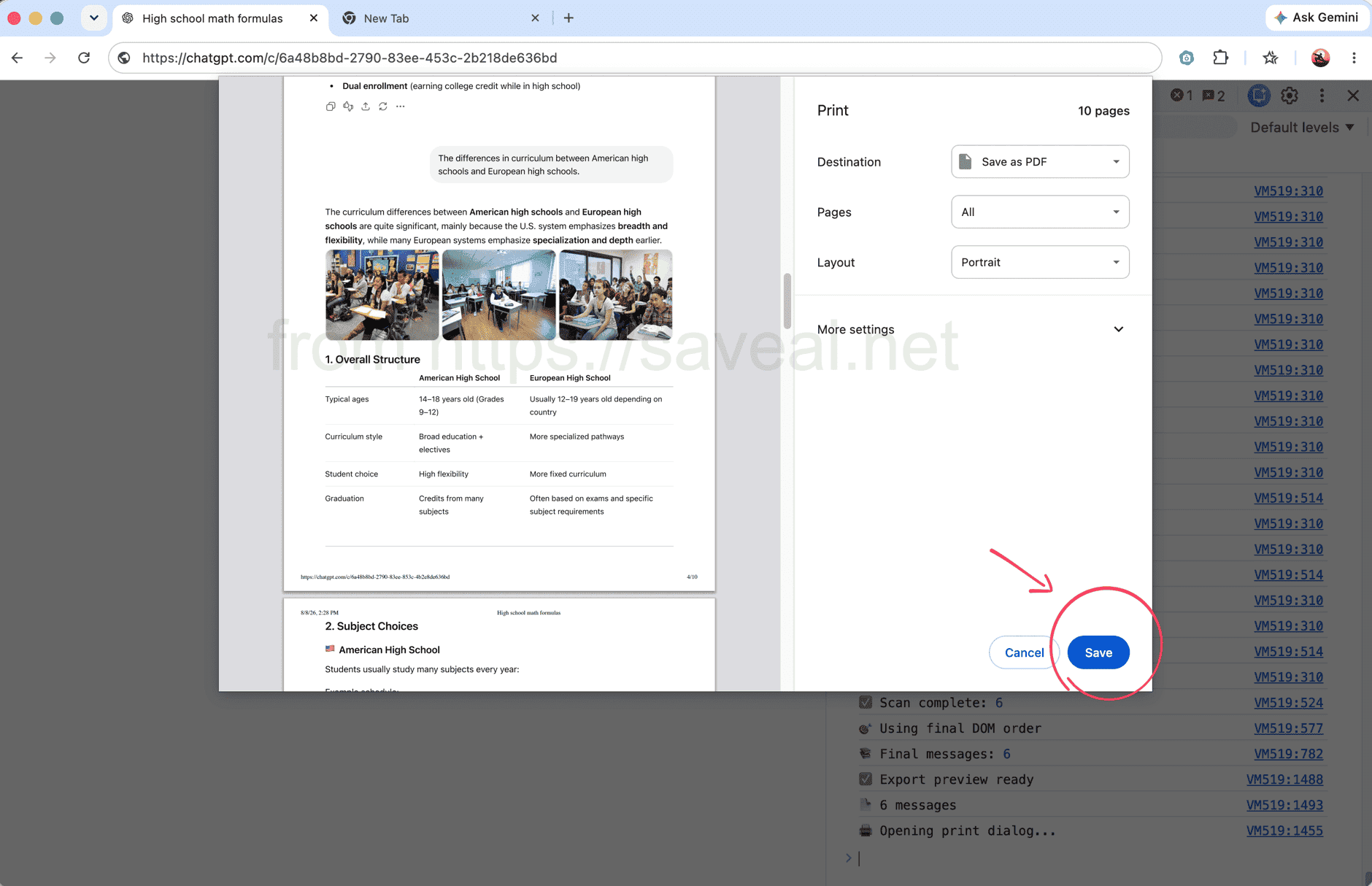
The message count appears in the Console while the script runs. When the scan is complete, Chrome opens the print window.
Method 2: Export the Entire Chat with a Browser Extension
If you would rather not use DevTools, AI Exporter provides a simpler option. Open the ChatGPT conversation, click the AI Exporter icon in Chrome’s toolbar, and select PDF in the popup. The extension loads the complete conversation and saves it as a PDF.
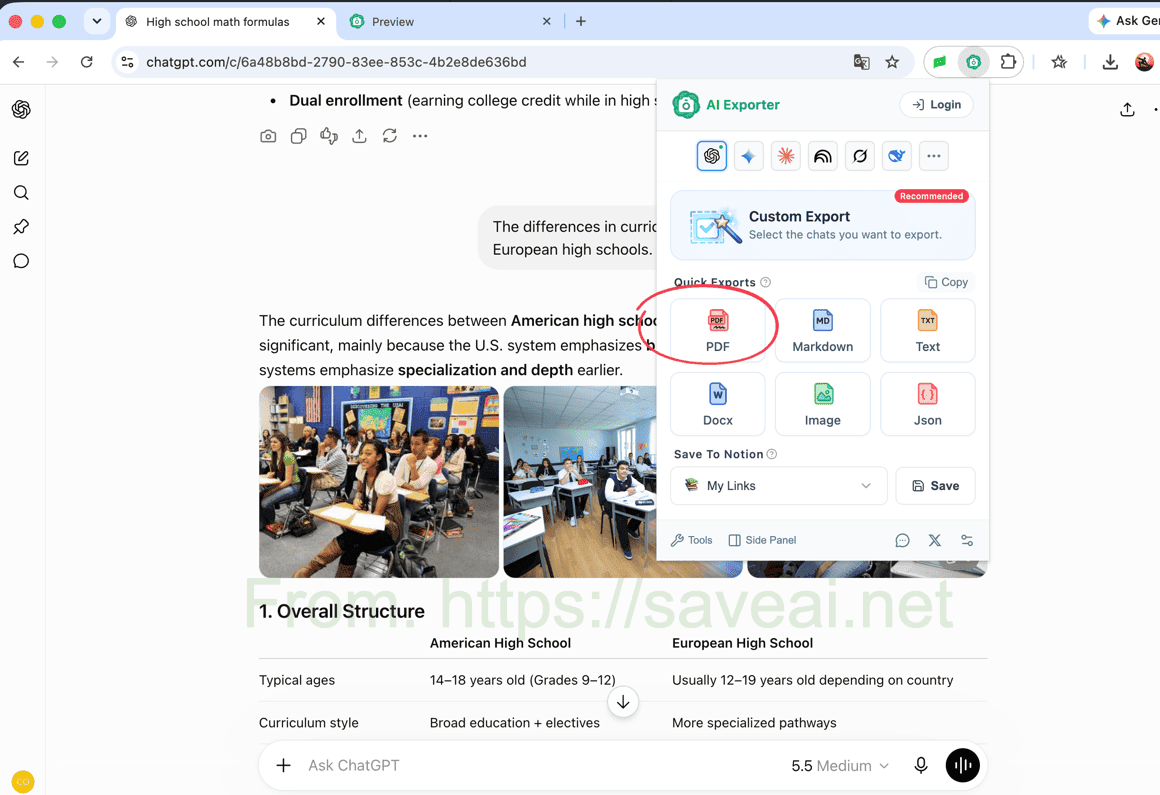
Click the extension icon to open the popup, then choose PDF to save the entire conversation.
This method requires installing an extension, but it is quicker for repeat exports and preserves content such as code blocks, tables, images, and formulas without extra setup. You can also select individual messages when you do not need the full chat.
Which Method Should You Use?
| Your situation | Best option |
|---|---|
| You need to print one chat without installing anything | Use the console script |
| You are comfortable working in Chrome DevTools | Use the console script |
| You export chats regularly | Use the browser extension |
| You need clean code, tables, formulas, images, or PDF controls | Use the browser extension |
For a one-time print, start with the script. For repeat exports or a cleaner PDF, use the extension.
This original article was written by Colin. If you repost it, please include a link to this article as the original source.