
Selective Export
If you only need to save specific parts of a long AI conversation rather than the whole page, the Selective Export feature is your best choice.
📥 1. Enter Selection Mode
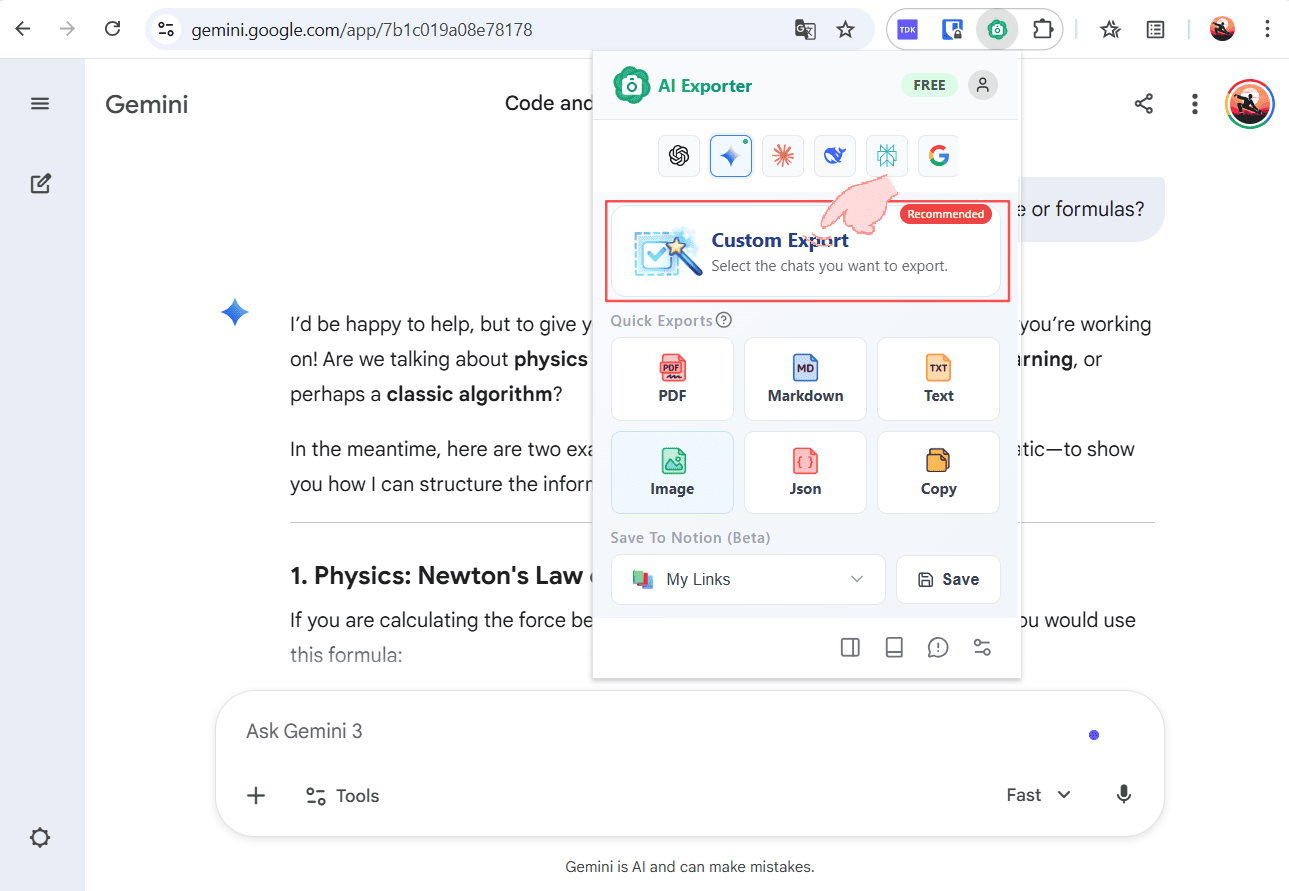
In your current AI chat, click the AI Exporter icon in the toolbar. Select “Custom Export” in the pop-up menu. This will capture your current session and take you to the Preview and Edit page.
🖱️ 2. Select and Export
In the Preview page, all conversation bubbles are neatly arranged. Follow these steps:
- Select Content: Click the checkboxes on the left of the messages you want to keep.
- Choose Format: On the bottom toolbar, select your desired export format (PDF, PNG, Markdown, TXT, etc.), click “Copy,” or sync them directly to your Notion workspace.
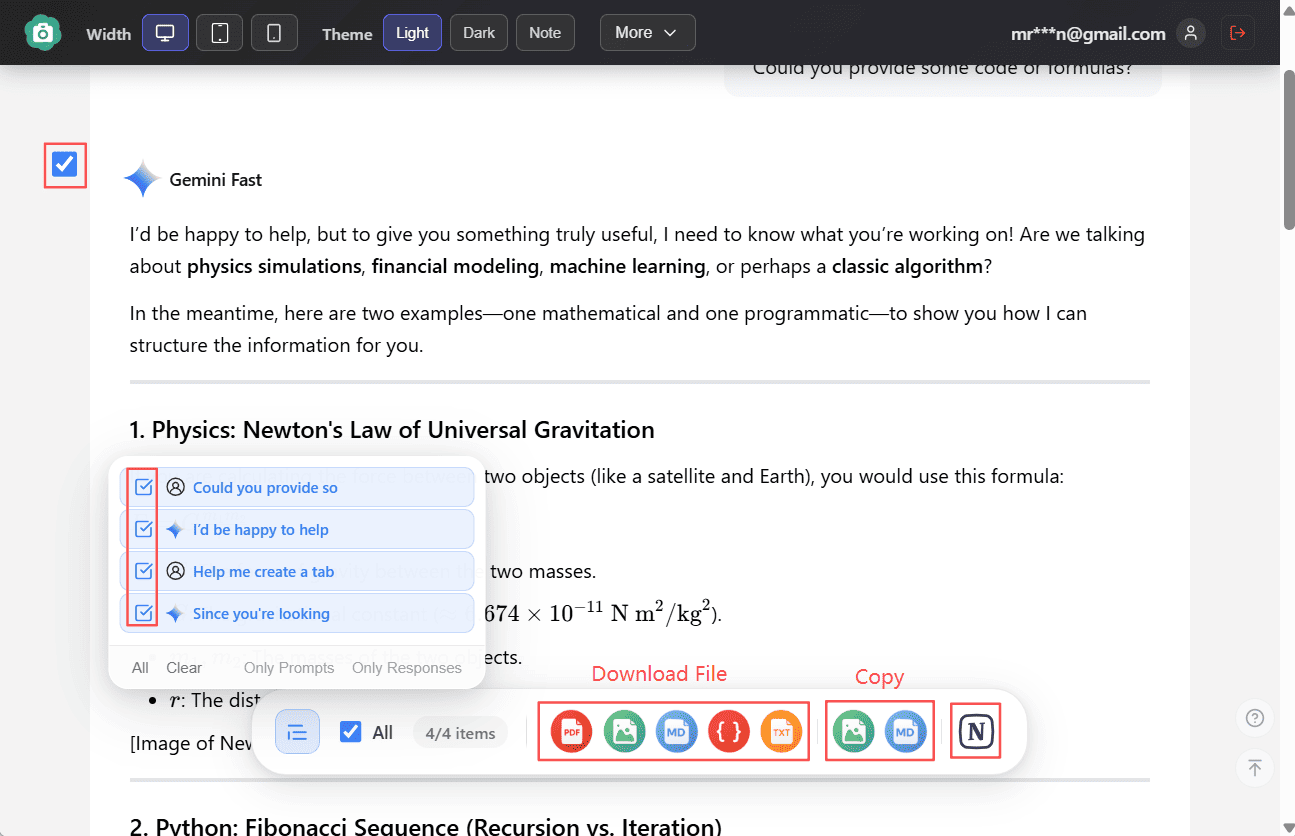
- Confirm: The exported file or copied text will only contains the messages you selected.