Copy as Markdown
In addition to saving files or syncing directly, you can extract content as clean text using the “Copy as Markdown” feature. This allows you to copy AI conversations with their original formatting (headers, bold text, code blocks, etc.) directly to your clipboard for easy pasting into other notes or editors.
🎯 1. Fast Full-Page Copy
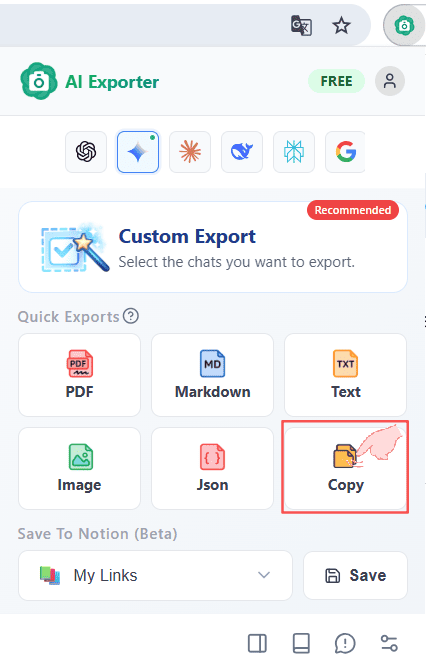
In any supported AI chat, just click the AI Exporter icon in your toolbar. You’ll find the “Copy Markdown” button at the top of the Quick Export area. One click grabs the entire page.
⚠️ Pro Tip: If a conversation is extremely long, it might exceed your operating system’s clipboard capacity. If copying fails on massive pages, try selective exporting instead.
🖱️ 2. Selective Selection Copy
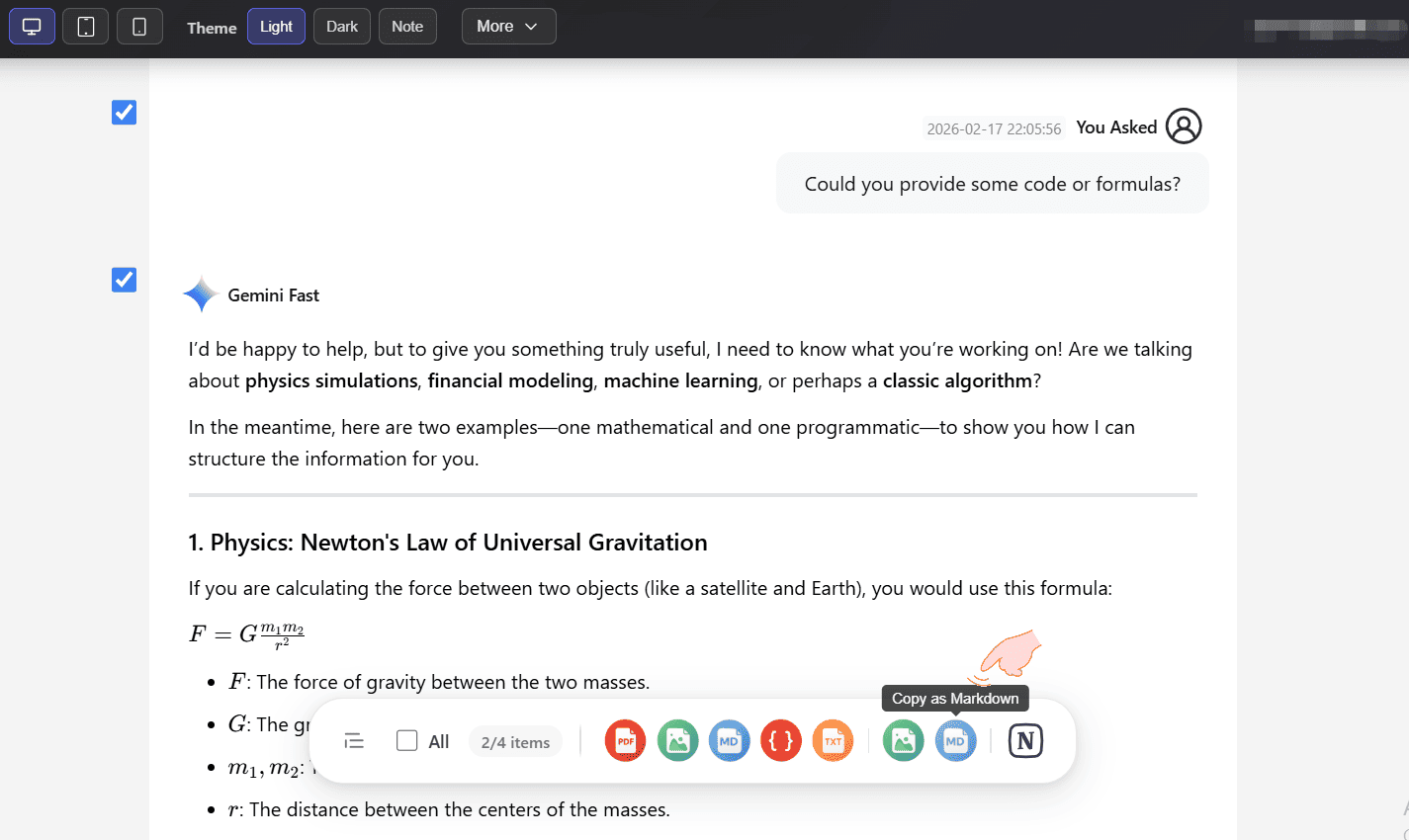
If you don’t need the whole chat, you can head to the Preview and Edit page. Check only the specific messages you want, then click the “Copy” button on the bottom toolbar. Your clipboard will contain only those selected parts.
👉 New to selective exporting? Check out the Selective Export guide.
📚 3. Combined Copy from Sidebar
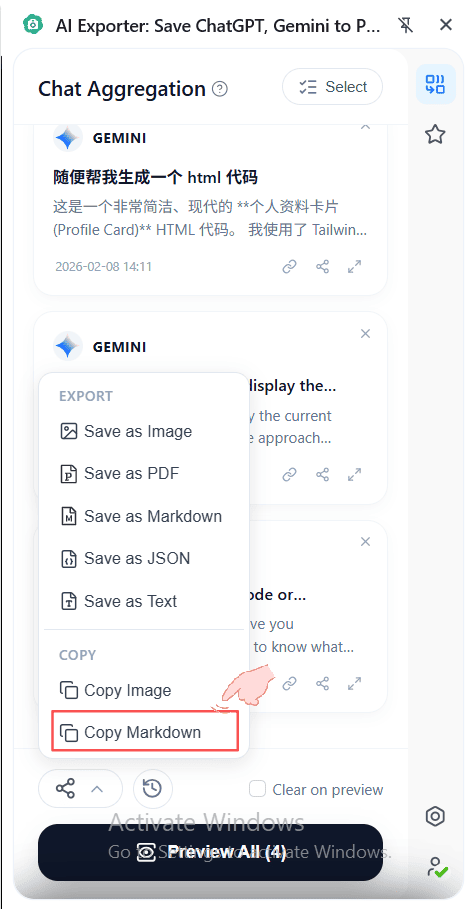
One of AI Exporter’s best features is the sidebar. Once you’ve collected messages from different pages and models into the sidebar, you can copy everything at once by clicking the copy icon at the bottom of the sidebar panel.
👉 If you’re not familiar with the sidebar yet, check out our Multi-Model Aggregation tutorial!