
Sync to Notion
As a powerful export tool, AI Exporter does more than just save local files – it features a deep integration with Notion. You can sync complex AI conversations, including code highlights and math formulas, directly to your Notion workspace with a single click.
🚀 1. Setup and Linking
In your AI chat, click the AI Exporter icon in your browser toolbar:
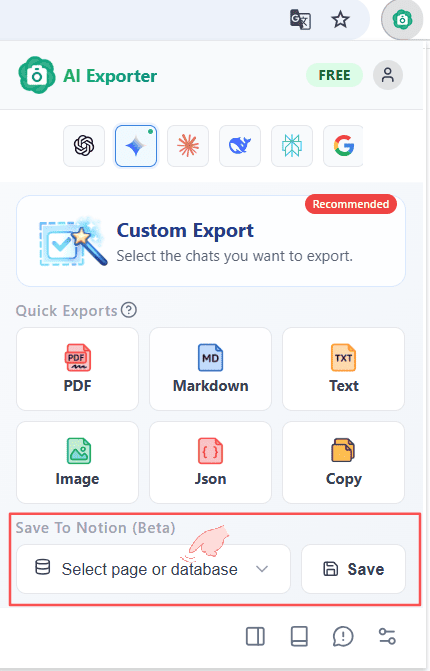
- At the bottom of the pop-up, you’ll see a dropdown labeled “Select Database / Page.” Click it.
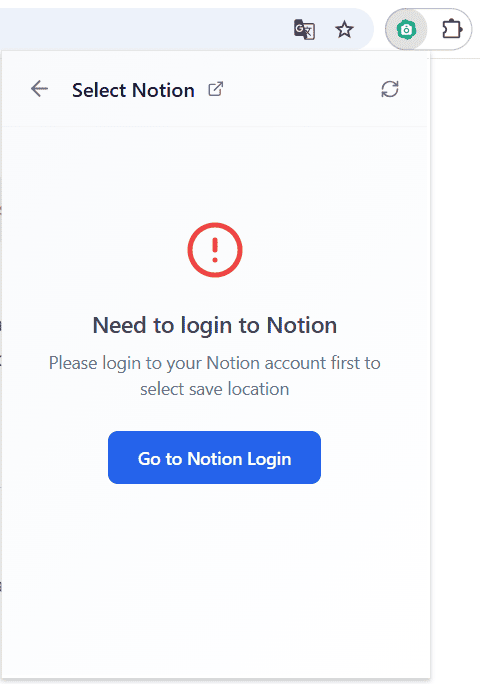
- Log in to Notion: If you haven’t logged in to Notion yet, you’ll see a prompt. Just click it and follow the steps on notion.so to log in to your account.
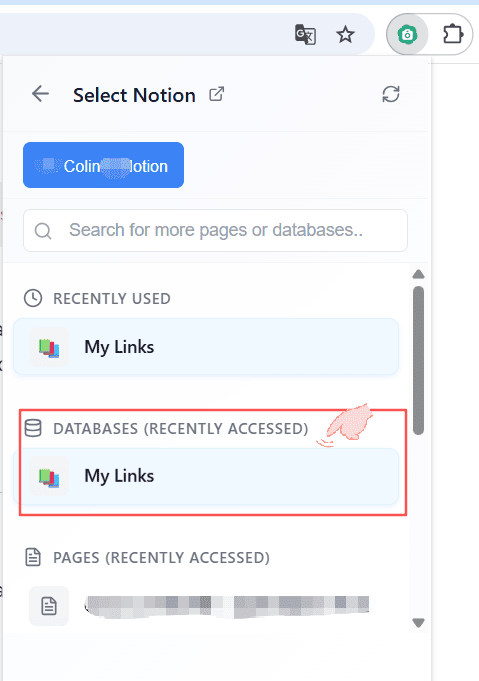
- Select a Destination: Once logged in and back in the panel, the dropdown will show your recently accessed Databases and Pages. 💡 Tip: If you don’t see your target page, use the search bar at the top to find it in your Notion workspace.
✨ 2. Sync Full Page Conversations
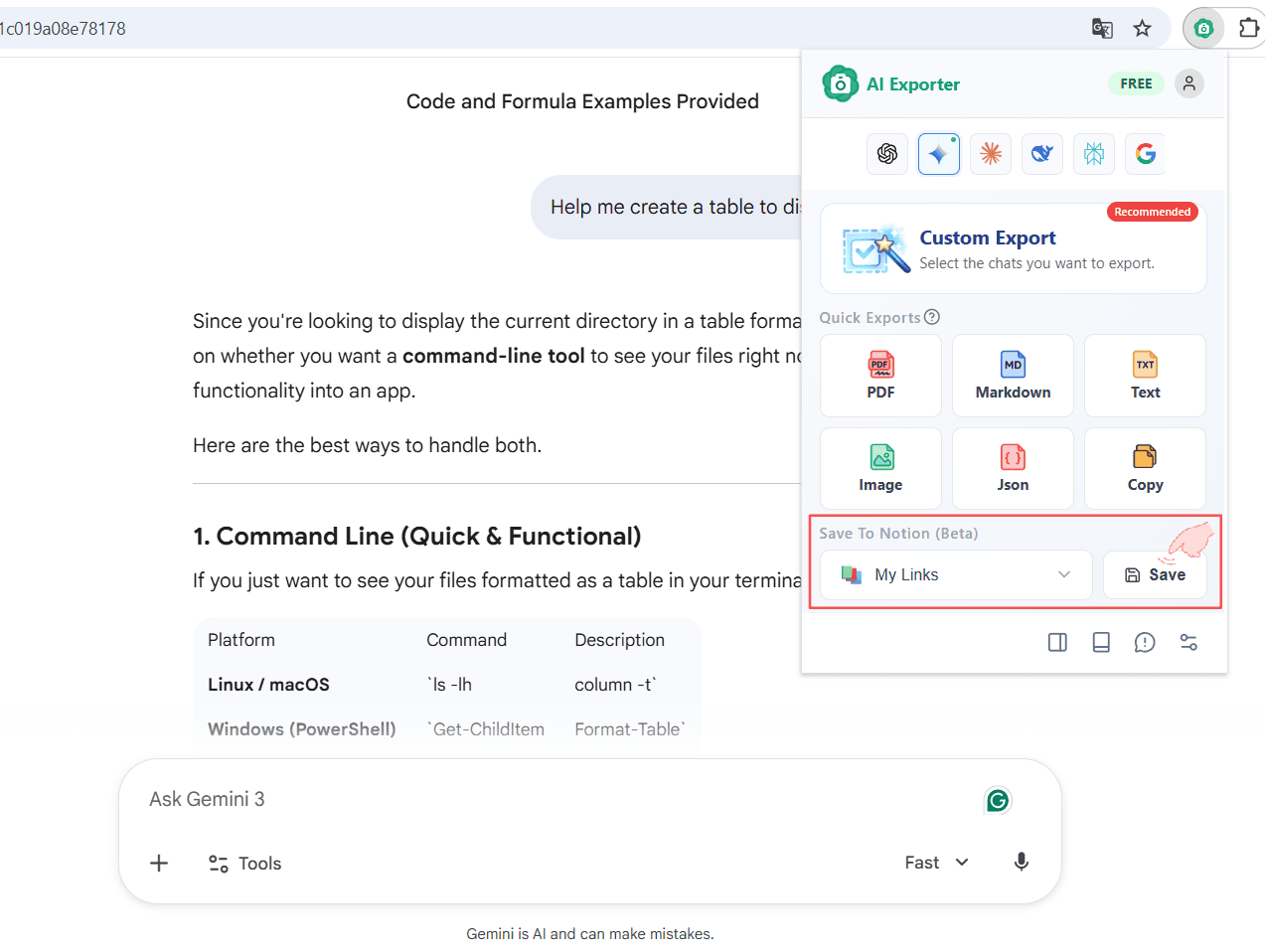
Once you’ve selected a Notion page (e.g., “My Links” in the image below):
Simply click the “Save” button with the Notion icon in the export toolbar. Wait a moment, and AI Exporter will push the entire chat history to the bottom of that Notion page.
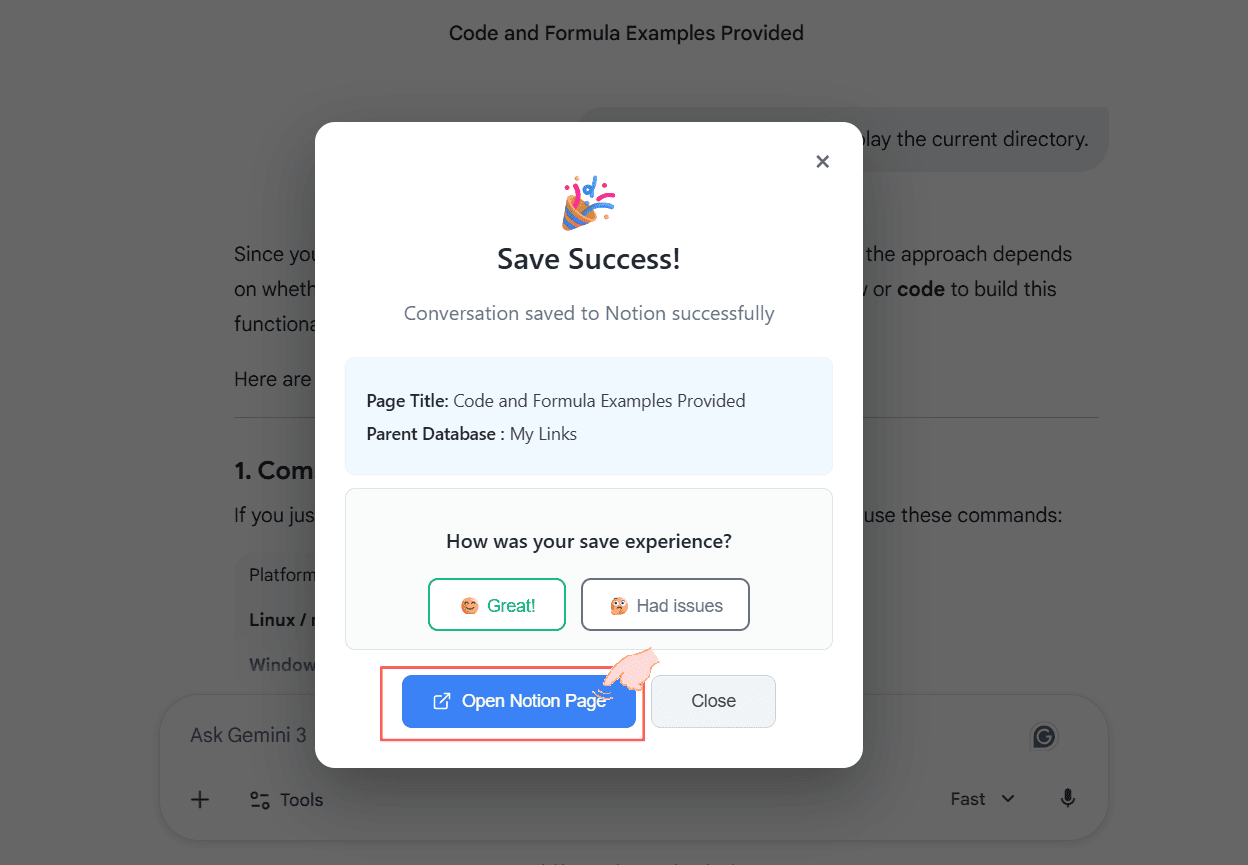
When the sync is complete, a success message will appear above the button! You can click the message to immediately jump to and open the Notion page where your data was saved.
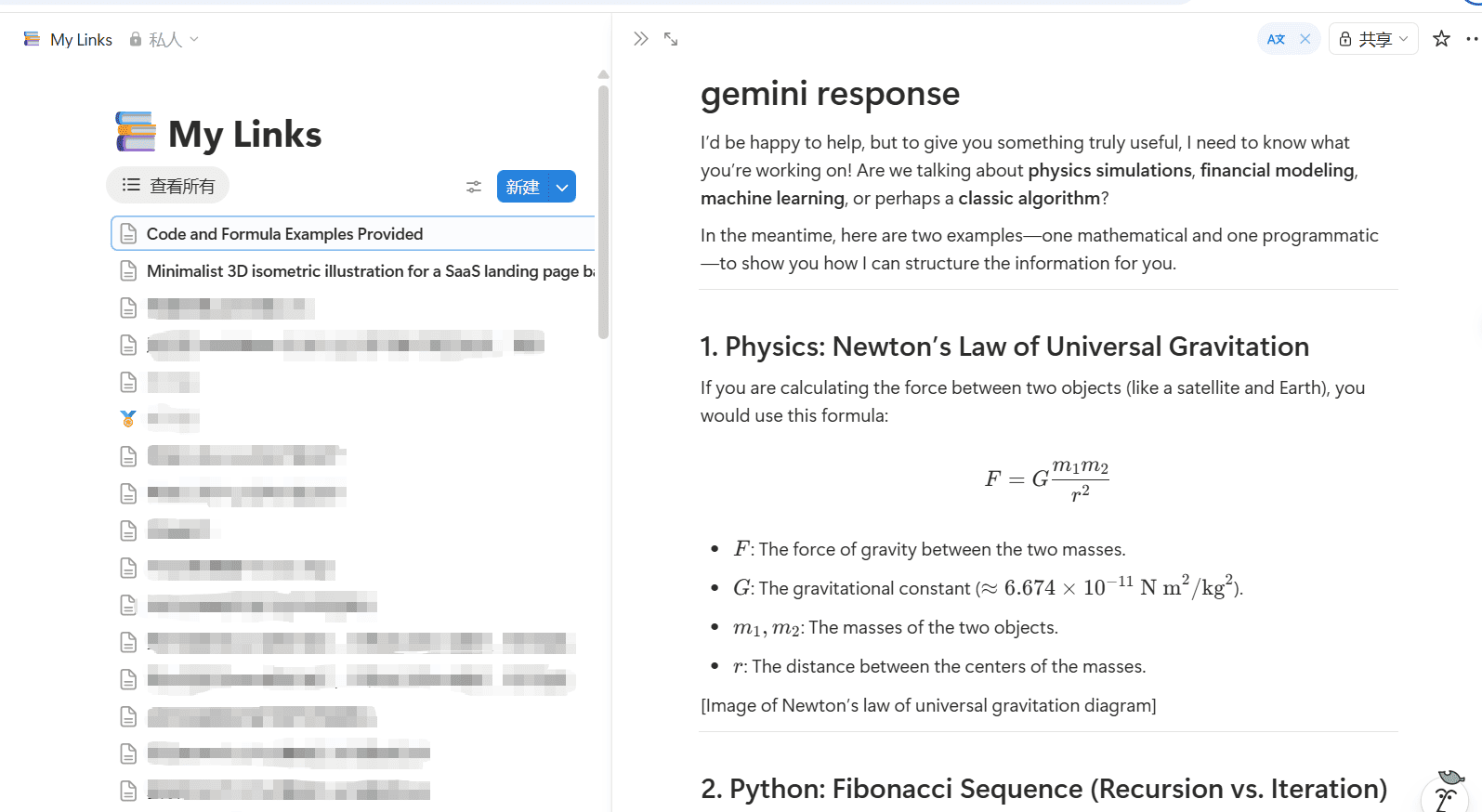
In Notion, you’ll see that everything from LaTeX math formulas and code blocks to complex Markdown formatting is replicated perfectly.
📸 3. Flexible Sync Options
AI Exporter also offers flexible ways to sync specific messages:
Option 1: Individual Message Sync Hover over a specific Q&A card in the AI chat and click the Notion icon to save just that part.

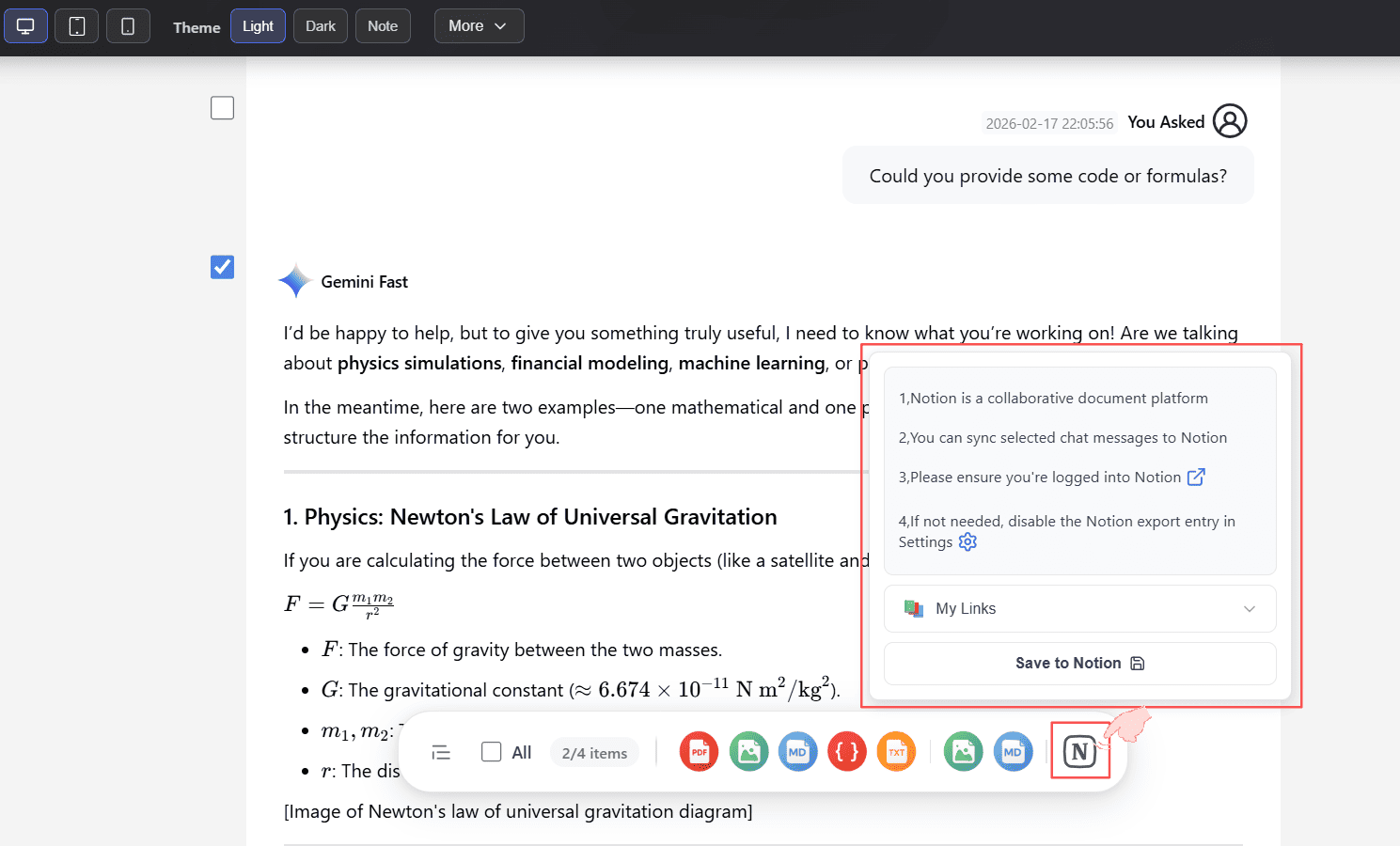
Option 2: Sync Selected Messages You can also sync from the Preview and Edit page. Check the boxes for the messages you want and click “Notion” in the bottom toolbar.
⚙️ 4. Disable Notion Integration (Optional)
If you don’t use Notion and want a cleaner interface, you can disable this specific feature in the Settings Center:
Simply go to Settings and toggle off the Notion related options. The corresponding icons and entries will be hidden.
